Track your eSIM data balance, monitor usage in real time, and never run out of data on your next trip.
Monitoring your eSIM data while on the go
Quick Summary
✓Track your CloudOn eSIM data usage anytime through the CloudOn app or website — see remaining data and plan expiry at a glance.
✓Your phone's built-in settings also give you real-time usage tracking per app.
✓CloudOn sends you automatic alerts when you reach 60% and 80% of your data allowance.
✓Using both the app and your device settings together helps you stay ahead and never run out unexpectedly.
How to Check Your eSIM Data Usage
There are two reliable ways to monitor how much data you've used: through the CloudOn app or website, and through your device's built-in settings.
Using the CloudOn App or Website
For the most accurate view of your remaining plan balance, head to your CloudOn account:
Open the CloudOn app or sign in at the website.
Navigate to the Manage section.
Select your active eSIM plan.
You'll see your data used, remaining balance, and plan expiry date.
This is the most reliable source for your actual plan usage — always refer here for billing accuracy.
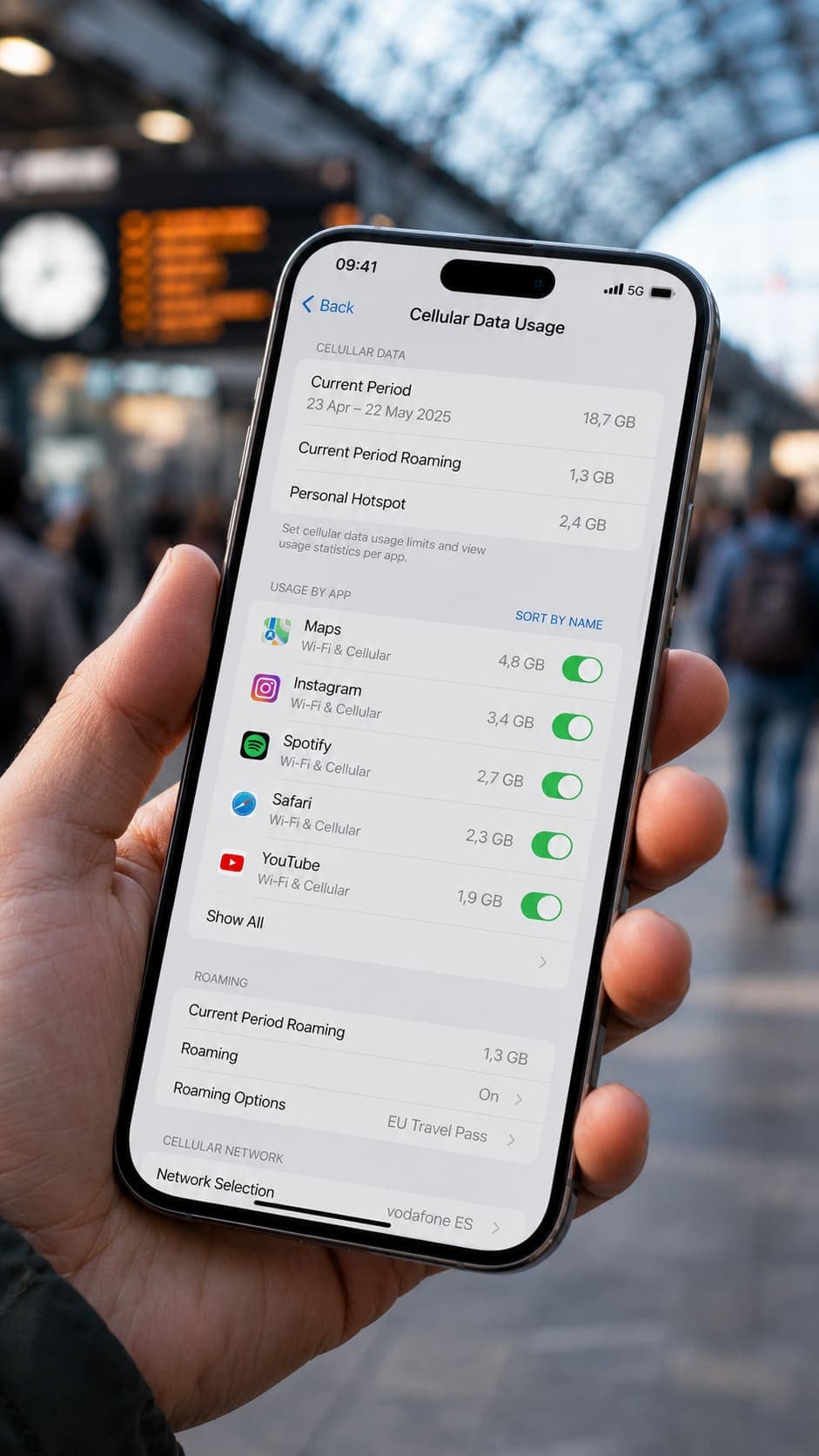
Checking Data Usage on iPhone
Go to Settings → Cellular (or Mobile Data).
Scroll down to the View Data Usage section.
You'll see total usage for the current period, plus a per-app breakdown.
iPhone tracks cumulative data across all time — not just your trip. To measure only travel usage, scroll to the bottom and tap Reset Statistics before you depart.
iPhone Settings — Cellular data usage view
Checking Data Usage on Samsung Galaxy
Swipe up to open your apps, then tap Settings.
Go to Connections → Data Usage.
Your mobile data usage total is shown here.
Tap Billing cycle and data warning → set your billing start date to align with your plan.
Adjusting the billing cycle start date makes your usage stats line up with your CloudOn plan. Changes may take up to a month to reflect accurately.
Checking Data Usage on Google Pixel
Open Settings → Network & internet → SIMs.
Your total data usage is displayed at the top.
Tap App data usage to see charts and per-app stats.
Use the time period dropdown to filter by date range.
Checking Data Usage on Xiaomi
Open Settings → Connection & Sharing → Data Usage.
Tap the dropdown and select This month.
Your total usage for the month is displayed.
Checking Data Usage on Huawei
Go to Settings → Wireless & Networks → Data Usage.
Total usage is shown at the top of the screen.
Scroll down to see a breakdown by app.
Why Does My Phone Show Different Usage?
It's completely normal to notice a gap between your phone's data counter and the usage shown in the CloudOn app. A few reasons this happens:
⚠
Measurement Differences Are Normal
Your device may round figures, sync with a delay, or count overhead traffic differently. For billing and plan accuracy, always use the CloudOn app as your reference.
Will I Get Alerts Before Running Out?
✓
Yes — CloudOn Notifies You Automatically
CloudOn sends both email and push notifications when you reach 60% and 80% of your data allowance, giving you time to plan ahead or top up before you run out.
What Uses the Most Data While Traveling?
Some activities drain your allowance much faster than you'd expect. Keep an eye on these:
HD / 4K Video Streaming
Hotspot & Tethering
Extended Map Navigation
App Updates & Background Sync
Simple habits that help stretch your data further
How to Reduce eSIM Data Usage
1
Enable Low Data ModeLimits background activity and automatic updates — available on both iOS and Android.
2
Restrict Background App DataDisable background data for non-essential apps so they only sync when you open them.
3
Use Wi-Fi Whenever PossibleSave your eSIM data by switching to Wi-Fi for downloads, app updates, and streaming.
4
Monitor Per-App Usage RegularlyReview which apps are consuming the most data and adjust their settings or permissions.
What Happens If I Run Out of Data?
Once your data allowance is exhausted, your connection will stop or slow to a halt. You'll need to either purchase an add-on or buy a new eSIM plan. With CloudOn, top-ups can be completed instantly through the app — so you're back online in seconds.
Frequently Asked Questions
QCan I track data usage separately for each eSIM?
Not always. Many devices combine usage across all SIMs, but some higher-end models support per-SIM tracking. Check your device settings to see what's available.
QWhich is more accurate — my phone or the CloudOn app?
The CloudOn app is more accurate for billing and plan-specific usage. Use your phone's settings for monitoring individual app consumption.
QHow often should I check my data usage?
For short trips, once a day is generally enough to stay on top of things and avoid any surprises.
QWhy is my data running out so quickly?
The most common culprits are background app refresh, video streaming, and automatic app updates running silently in the background. Use Low Data Mode and restrict background activity to slow things down.