
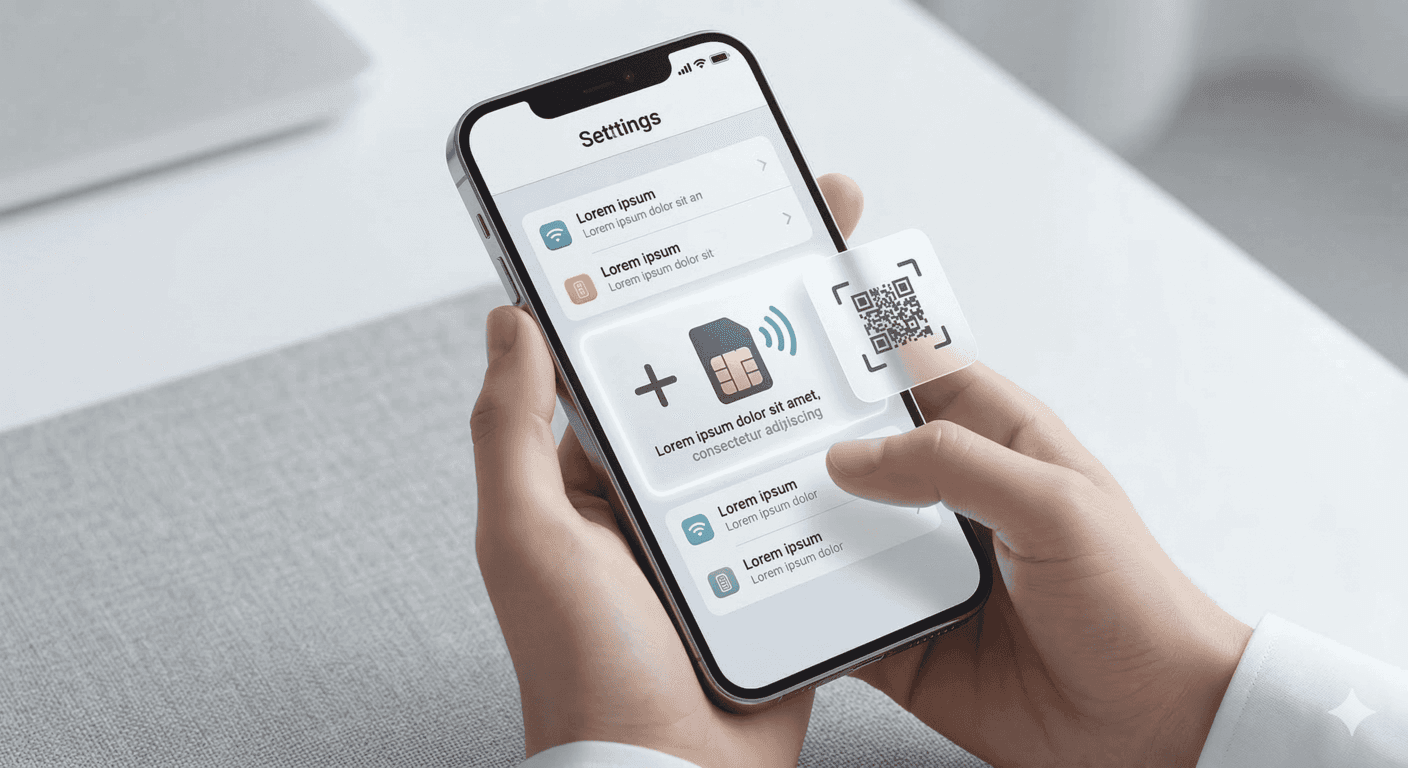
Setting up an eSIM on your iPhone takes less than five minutes once you know exactly where to look. Apple has championed digital SIM technology for years—supporting it since the iPhone XR (2018), and transitioning to eSIM-only models in the US starting with the iPhone 14. This step-by-step guide will walk you through exactly how to activate an eSIM on your iPhone so you land abroad with your data already working perfectly.
What you need before you start the activation process
- An eSIM-compatible iPhone (iPhone XR, XS, SE 2nd gen, iPhone 11, 12, 13, 14, 15, or 16 series).
- A stable Wi‑Fi connection to download the carrier profile.
- Your eSIM activation QR code (sent via email or available in your provider dashboard).
- A carrier-unlocked iPhone. If you're unsure if your device is locked to your home carrier, try adding the eSIM anyway; your iPhone will flag a 'SIM Not Supported' warning if it is locked.
Step 1: Open your iPhone Cellular settings
Navigate to Settings → Cellular (labeled as Mobile Data in some international regions). Tap the blue Add eSIM or Add Cellular Plan button. On iOS 17 and newer, this button appears prominently on the main Cellular screen.
Step 2: Scan your eSIM QR code
Point your iPhone's camera at the QR code (you can display it on a tablet, laptop, or print it out). Hold it steady until "Cellular Plan Detected" pops up on your screen, then tap to confirm the download. If you cannot scan the code, tap Enter Details Manually at the bottom of the screen and paste the SM-DP+ Address and Activation Code provided by your vendor.
Step 3: Label your data lines (Dual SIM setup)
iOS will ask you to label your new plan. We recommend naming it something obvious like "Travel Data - Spain" to avoid confusion. Next, iOS will ask you to assign default lines. The best practice for travelers is to keep your Primary SIM set as default for Voice and SMS, and select your new eSIM as your default line for Cellular Data.
That is all there is to it. You have successfully enabled Dual SIM mode. Keep your primary SIM for emergency calls, use the eSIM for cheap internet, and skip the airport SIM kiosks entirely. Browse travel eSIM plans for your next trip →
Ready to get an eSIM?
Browse plans for 190+ countries. Purchase in minutes, install in seconds.