
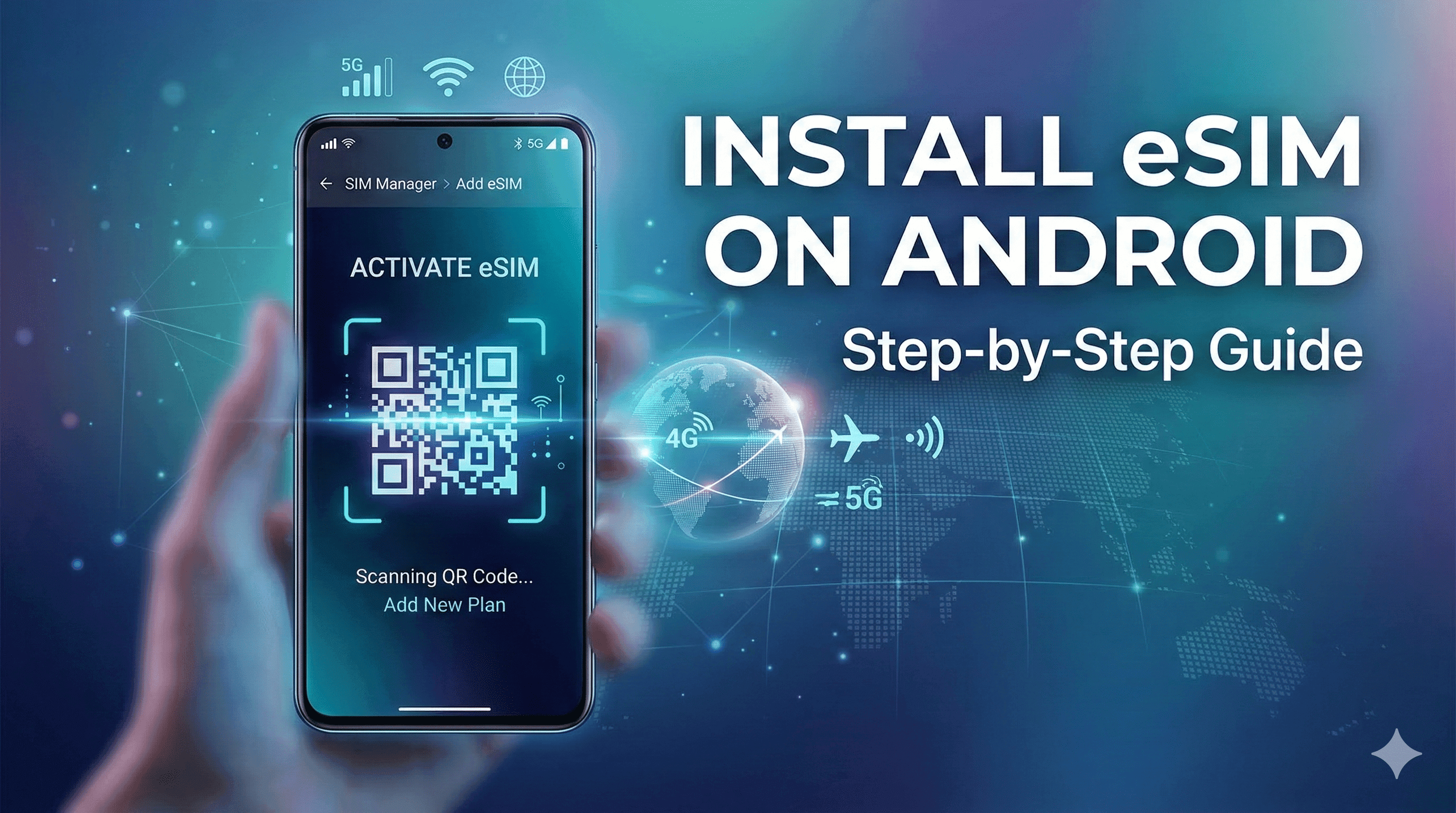
What is an eSIM?
An eSIM (embedded SIM) is a tiny, programmable chip built directly into your smartphone. It does the exact same job as a physical SIM card, but entirely digitally.
Instead of fumbling with paper clips and tiny plastic cards, you simply download a digital data plan. It is the ultimate modern convenience for travelers and digital nomads.
Benefits of Using an eSIM
Learning how to use eSIM technology unlocks incredible flexibility. You can switch between networks without ever visiting a mobile carrier store.
Instant Delivery: Buy online and receive your QR code immediately.
Keep Your Number: Leave your primary physical SIM in your phone for texts and calls.
No Roaming Fees: Buy a local or regional eSIM and pay local data rates.
Eco-Friendly: Zero plastic waste and zero shipping emissions.
Requirements Before Installing
Before you attempt to install an eSIM on Android, you need to check a few basic requirements to ensure a smooth process.
A Compatible Device: Ensure your Android phone supports eSIM technology (most modern Pixels and Samsung Galaxy S-series do).
An Unlocked Phone: Your device cannot be locked to a specific carrier.
Stable Internet: You need a Wi-Fi connection to download the eSIM profile.
Your QR Code: Have your eSIM QR code ready on another screen, or printed out.
Important Note: You must buy your eSIM before traveling and ideally install it while you still have reliable home Wi-Fi.
Step-by-Step Guide to Install eSIM on Android
This Android eSIM guide covers the standard process. Please note that menus might look slightly different depending on whether you use a Samsung, Google Pixel, or another Android brand.
Method 1: Scanning a QR Code
This is the fastest and most common way to handle your eSIM setup Android style.
Open Settings: Navigate to your phone’s Settings app.
Go to Network: Tap on Network & internet (or Connections on Samsung).
Add Mobile Network: Tap the + icon next to Mobile network (or SIM manager > Add eSIM).
Choose Download: Select the option that says Download a SIM instead? or Add using QR code.
Scan the Code: Use your phone's camera to scan the QR code provided by your eSIM carrier.
Confirm Activation: Follow the on-screen prompts to download and activate eSIM Android.
Method 2: Manual Activation
If your camera is broken or you can't scan the QR code, you can enter the details manually.
Follow steps 1-4 from the QR code method above.
When the camera opens, tap Need help? or Enter details manually at the bottom of the screen.
Copy and paste the SM-DP+ Address and Activation Code provided in your eSIM confirmation email.
Tap Continue to finalize the installation.
Troubleshooting Common Issues
Even with a perfect guide, technology can sometimes be stubborn. Here is how to fix common installation hiccups.
QR Code Not Working
If your phone won't read the QR code, ensure your screen brightness is turned up on the device displaying the code. Double-check that you are connected to Wi-Fi, as the code won't validate without internet.
eSIM Not Detected
If you've installed the profile but have no service, go to your SIM manager. Ensure the new eSIM is toggled ON and selected as the primary source for "Mobile Data".
Network Issues
If the data is slow or not connecting, check if Data Roaming is turned on for your new eSIM. Most travel eSIMs require data roaming to be active to connect to partner networks.
Pro Tips for First-Time Users
Label Your SIMs: Rename your new digital SIM to "Travel" or "CloudOn" in your settings so you don't confuse it with your primary line.
Turn off Auto-Data Switching: Disable this feature in your settings to prevent your phone from accidentally using your primary home SIM for expensive data.
Track Your Usage: Keep an eye on your data limits through your Android settings or your eSIM provider's app.
Ready for your next trip? Get your eSIM from CloudOn for seamless, high-speed global connectivity.
Common Mistakes to Avoid
Deleting the eSIM: Never delete your eSIM profile if it stops working. Deleting it often means you have to buy a brand-new one. Contact support instead!
Installing Too Early: Only activate your eSIM right before your trip, as some plans start their validity countdown the moment they are installed.
Forgetting to Unlock: Assuming your phone is unlocked without checking with your carrier first will leave you stranded without data.
Learning to install an eSIM on Android is a game-changer for travelers. It takes just a few minutes, a steady Wi-Fi connection, and a quick QR scan.
By following this guide, you can confidently ditch expensive roaming charges. Buy your eSIM before traveling, set it up at home, and step off the plane already connected
Ready to get an eSIM?
Browse plans for 190+ countries. Purchase in minutes, install in seconds.