
How to Use Your eSIM as a Hotspot for Multiple Devices
Staying connected while traveling used to mean hunting for sketchy public Wi-Fi or swapping out physical SIM cards. With the rise of eSIM technology, staying online is easier than ever.
But what happens when you need to get your laptop, tablet, or a friend’s phone online too? The good news: you can use your eSIM as a mobile hotspot just like a traditional SIM.
Table of Contents
What is an eSIM Hotspot?
Requirements Before You Start
Step-by-Step Guide: Android
Step-by-Step Guide: iPhone (iOS)
How Many Devices Can I Connect?
Data Usage: What Consumes the Most?
Tips to Optimize Your Hotspot
Troubleshooting Common Issues
Pro Tips & Common Mistakes
FAQ
What is an eSIM Hotspot?
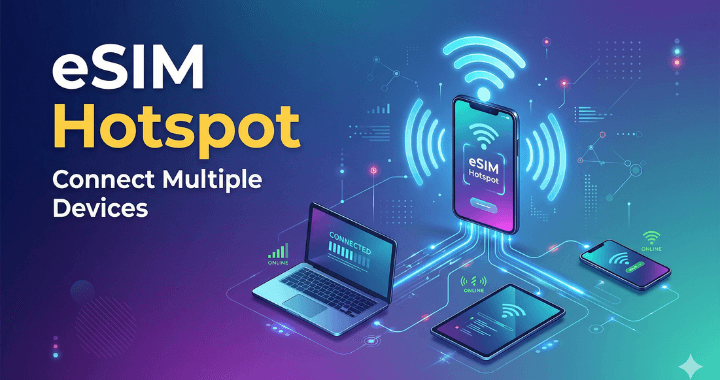
An eSIM hotspot allows you to share your digital SIM's data connection with other devices via Wi-Fi, Bluetooth, or USB. This process is often called tethering.
Essentially, your smartphone acts as a portable router. Whether you're on a train in Europe or a beach in Bali, your eSIM can provide internet to your entire "mobile office."
Requirements Before You Start \
Before you try to share eSIM internet, ensure you meet these criteria:
Carrier Support: Ensure your eSIM provider allows tethering (most do, but some "unlimited" plans may restrict it).
Active Data Plan: You must have an active, topped-up eSIM profile.
Hardware Capability: Your smartphone must support mobile hotspot functionality.
Signal Strength: A weak 3G signal will make for a poor hotspot experience; 4G or 5G is ideal.
Step-by-Step Guide: Android
The eSIM hotspot setup on Android is straightforward, though menu names may vary slightly by manufacturer (Samsung vs. Pixel).
Open Settings.
Tap Network & Internet (or Connections).
Select Hotspot & Tethering.
Tap on Wi-Fi Hotspot.
Toggle the switch to On.
Set your Hotspot name and a strong password.
Step-by-Step Guide: iPhone (iOS)
Setting up a mobile hotspot eSIM on an iPhone is incredibly simple:
Go to Settings.
Tap Cellular (or Mobile Service) and ensure your eSIM is selected as the Cellular Data line.
Go back to the main Settings menu and tap Personal Hotspot.
Toggle Allow Others to Join to green.
Note the Wi-Fi password provided to connect your other devices.
How Many Devices Can I Connect?
Most modern smartphones allow you to connect between 5 and 10 devices simultaneously.
Warning: The more devices you connect, the slower the speed will be for everyone, as they are all "sharing" the same data pipe.
Data Usage: What Consumes the Most?
Using your phone as a hotspot consumes data much faster than browsing on the phone itself. Here is how common activities impact your data bucket:
🔴 CRITICAL USAGE: Video Streaming & Downloads Streaming in HD can burn through 3GB per hour. Large file downloads or OS updates are the fastest way to hit your data limit.
🟠 HIGH USAGE: Laptop Browsing Laptops assume they are on "free" Wi-Fi and often run background syncs (Dropbox, OneDrive) that drain data quickly.
🟡 MODERATE USAGE: Social Media Auto-playing videos on Instagram or TikTok can add up fast, though it's safer than desktop browsing.
🟢 LOW USAGE: Email & Messaging Standard text-based emails and WhatsApp messages have a negligible impact on your data.
Tips to Optimize Your Hotspot
To make your tethering with eSIM experience last longer, follow these tips:
Disable Auto-Updates: Turn off "Cloud Sync" or Windows/App Store updates on connected laptops.
Lower Video Quality: Manually set YouTube or Netflix to 480p or 720p.
Use Data Saver: Enable "Low Data Mode" on iPhones or "Data Saver" on Androids for the connected devices.
Turn it Off: Always disable the hotspot when not in use to save battery and data.
Troubleshooting Common Issues
No Internet on Connected Device: Check if your eSIM has run out of data or if your "Roaming" toggle is turned off.
Hotspot Option Grayed Out: This usually means your carrier doesn't support tethering on that specific plan.
Frequent Disconnects: Keep the sharing phone close to the receiving devices. Walls and distance weaken the signal.
Pro Tips & Common Mistakes
Pro Tips
Rename your Hotspot: Use a unique name so you don't accidentally connect to someone else's "iPhone."
USB Tethering: If you only need to connect one laptop, use a USB cable. It’s faster and saves phone battery!
Common Mistakes to Avoid
Leaving the Hotspot Open: Always use a password (WPA2 or WPA3) to prevent strangers from stealing your data.
Forgetting to Charge: Hotspotting drains battery quickly. Keep a power bank handy.
FAQ
Q: Does using a hotspot cost extra? A: Usually, no. Most eSIM providers treat hotspot data as part of your regular data bucket. Check your provider's terms to be sure.
Q: Can I receive calls while using the hotspot? A: Yes, you can still use your phone normally while the hotspot is running.
Q: Why is my hotspot speed so slow? A: This is likely due to poor local cell reception or too many devices connected at once.
Q: Will a hotspot work on an "Unlimited" plan? A: Some carriers throttle hotspot speeds to 3G levels on unlimited plans after a certain threshold is reached.
Get Connected with CloudOn
Ready to travel without the Wi-Fi hunt? Use CloudOn eSIM for a reliable hotspot while traveling. Our plans are designed for digital nomads and power users who need to share their connection across multiple devices.
[View CloudOn eSIM Plans that Support Tethering]
Ready to get an eSIM?
Browse plans for 190+ countries. Purchase in minutes, install in seconds.